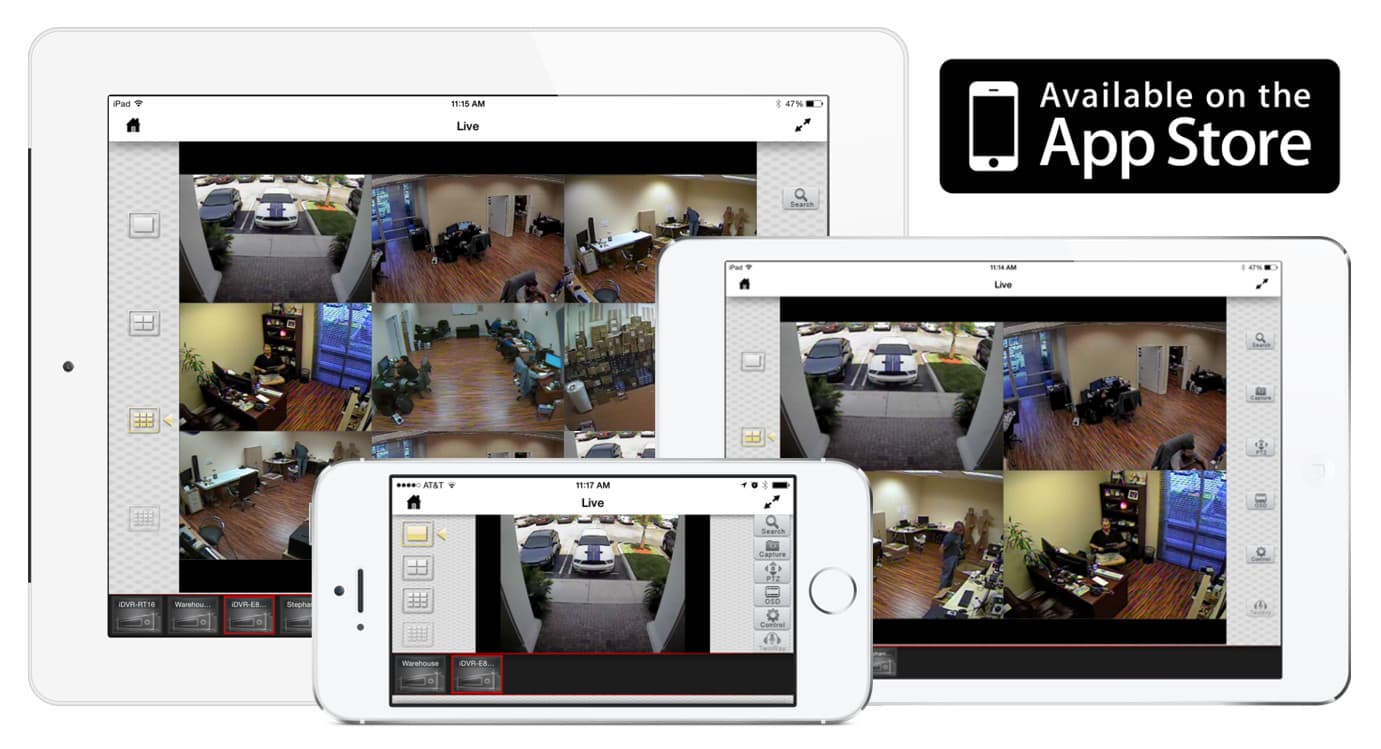
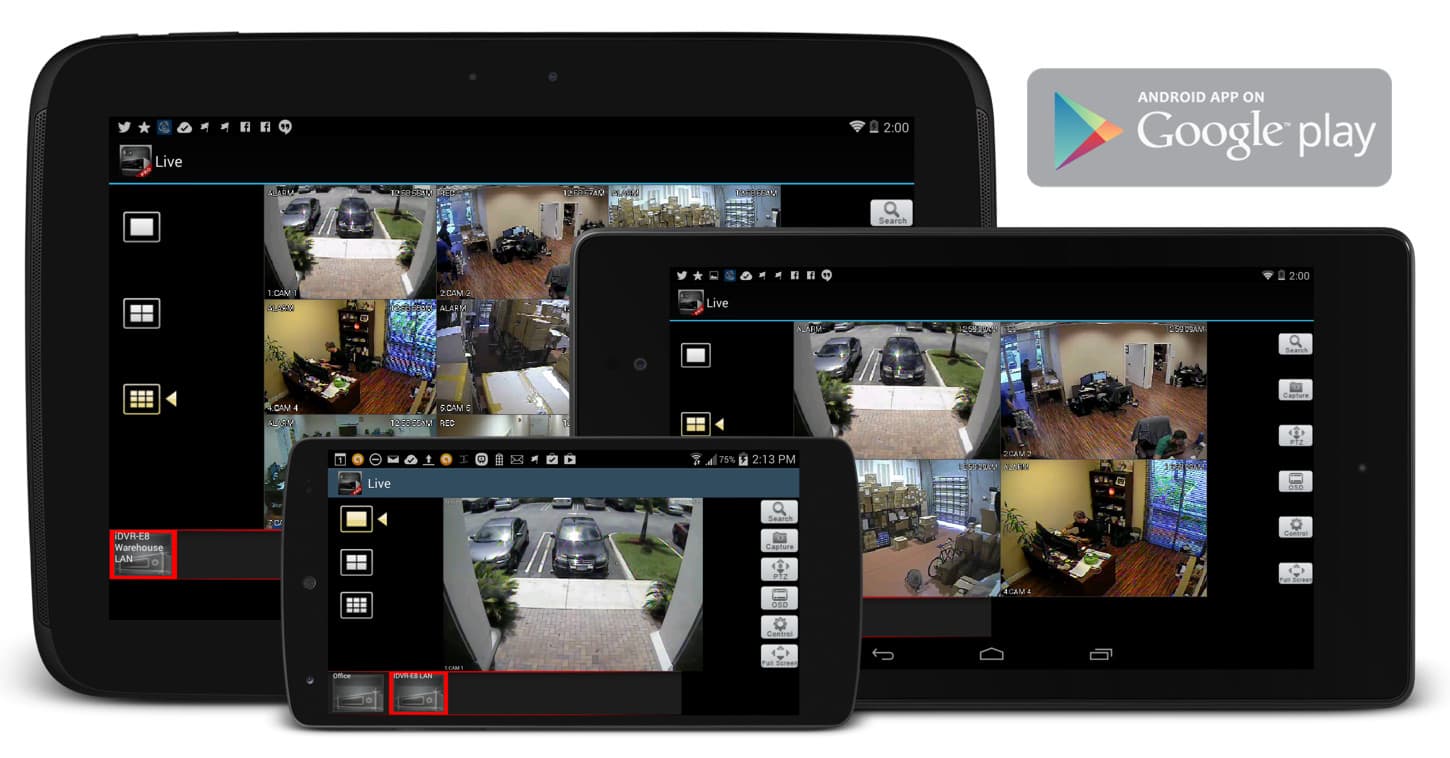
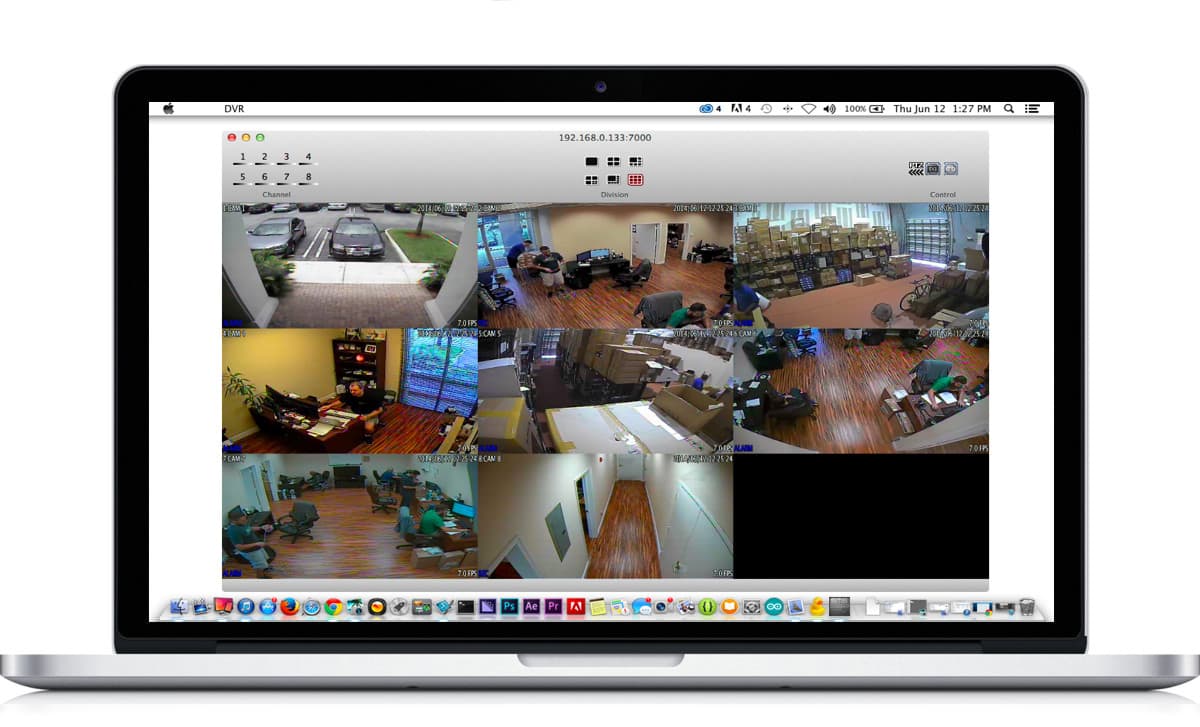
The iDVR from CCTV Camera Pros is a video surveillance recorder that includes a free iPad app that allows users to view their security cameras live over the internet. A paid version of the app is also available that supports playback of recorded video. This video will demonstrate both versions of the app.
First I open the free app by tapping on the icon on the iPad. The home screen of the app displays and the two DVRs that are already configured are seen here. I tap on the four channel iDVR emodel and all the cameras are displayed in a grid view. When I double tap on Camera 1 a single view of that camera is displayed. I can navigate to the other single camera views by swiping my finger across the screen. I return to the four screen view by tapping on the four screen icon on the left.
Next I open the paid version of the app which currently sells for $10 in the app store. I open the same DVR in the app. There are a few additional options on the right hand side of the screen in the paid version. The most important is the search option which gives users the ability to search through and playback recorded video from their DVR. Here I select yesterday from the calendar and then select one of the hour blocks. Then I slide the minute slider to go to the exact point in time that I want to start viewing.
Thumbnails of the video capture during that time segment are displayed along the bottom of the screen. I tap on one of the thumbnails to start playback of that segment of video. Videos can be played in fast forward or reverse using the controls on the bottom of the screen. You can also switch between multi-camera and single camera views when playing back recorded video.
Last I want to show how easy it is to switch from viewing one recorder to another. You simply tap on the icon of the DVR that you want to view along the bottom of the screen. This is a great feature for businesses with more than one location or if you want to view your home and business from the same app.
The mobile CMS app is made for the iDVR which is exclusively sold by CCTV Camera Pros. For more information and pricing on the 4, 8 and 16 camera models that are available, please visit www.cctvcamerapros.com/iDVR. Thank you for watching this video.
HD Video Playback Instructions
For the best viewing experience, start playing the video, then select the highest video quality setting by clicking on the video settings button.
If you were able to select 720p or 1080p video, you should also select full screen mode to see the video larger. You can break out of full screen mode by clicking on the Esc button on your keyboard.
Surveillance Equipment
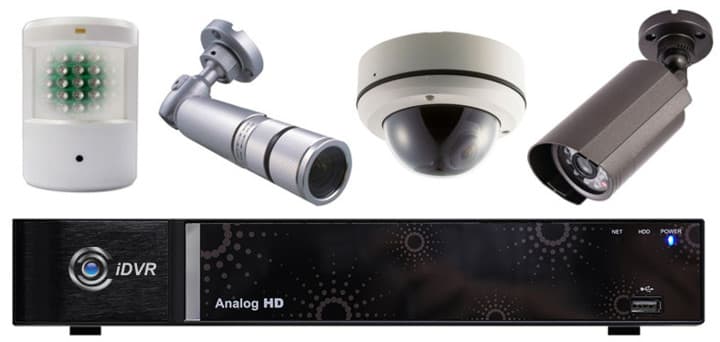
Below are the products used in the making of this video.
The
iDVR-E4 is the surveillance DVR that was demonstrated in this video.
If you do not currently have an iDVR-PRO and would like to log in to the demo unit at our office, please request a demo login below. You will be able to login from iPhone, iPad, and Android mobile devices. You can also login from Macintosh and Windows computers. Please
click here to request a demo login.
Complete CCTV Systems
Did you know? CCTV Camera Pros can provide a complete surveillance system quote that includes a hybrid iDVR-E surveillance DVR, any number of cameras SD and
HD CCTV cameras you need plus cables, connectors, power supplies, and monitors? As you have probably already seen on our website, we have 2, 4, 8, and 16 camera surveillance systems in pre-made packages. However, it is not possible for us to package up every combination and quantity of all the different camera models that we carry. So, we can also provide you with a custom quote with as many cameras as you need and a mix of any combination of camera model(s) based on your project requirements.
Video Author & Producer
This video was created by and this page is maintained by
Mike Haldas, co-founder and managing partner of CCTV Camera Pros. If you have questions about setting up alarm inputs and outputs, please email me at mike@cctvcamerapros.net.
Be First to know of our deals and promotions. Sign up for our mailing list: