Viewtron DVR / NVR Static IP Address Setup
This article documents the setup process to assign a static IP address to a Viewtron DVR / NVR. It is important to permanently assign a LAN (local area network) IP address to your DVR if you are going to setup port forwarding. A static IP address will ensure that any remote viewing software or mobile apps that connect to your DVR will not loose connectivity if there is a power loss or if your DVR is re-started. There are two methods to assign a static IP address to your Viewtron DVR.
- Router DCHP Reservation - If you are using a network router that supports DHCP reservation, this is the method that CCTV Camera Pros recommends.
- Assign Static IP via IP Camera Firmware - If you can not reserve IP addresses on your router, then you can switch the firmware of the IP camera from DHCP to static IP.
These instructions assume that you have already performed the initial network setup of your IP camera.
Follow these general instructions to assign a static IP address to your DVR via DHCP reservation on your network router. Please note that the exact process, user interface, and terminology will vary depending on the make and model of the router that you are using. Each manufacturer is slightly different, but the concept are the same as with the TP-Link router that we tested with at CCTV Camera Pros.
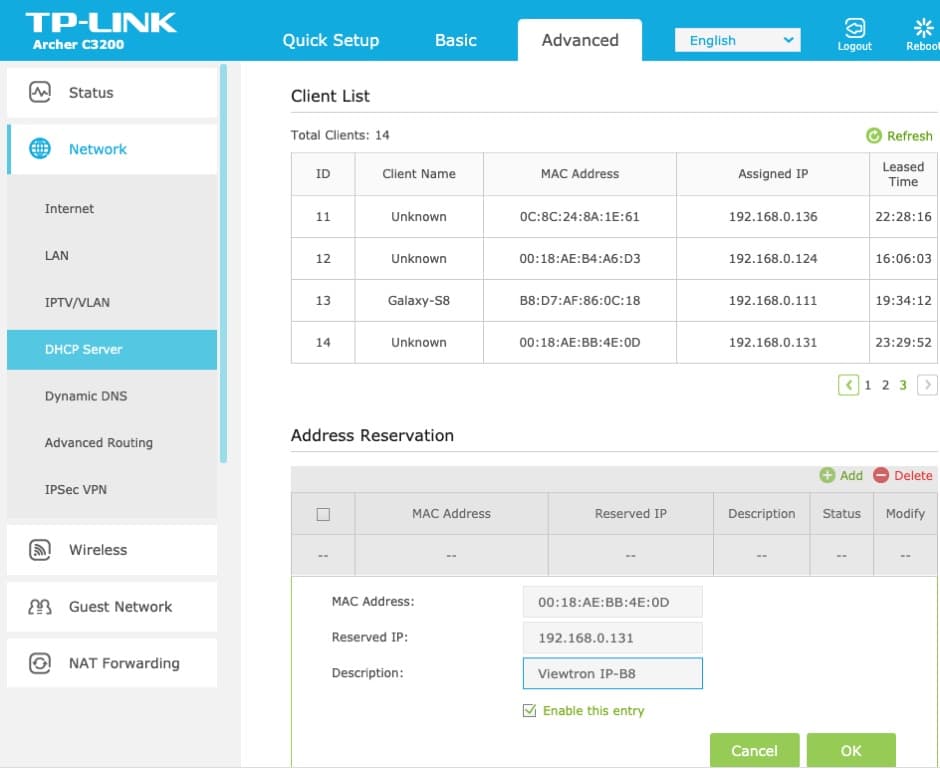
- On the router, navigate to Network -> DHCP Server.
- The DHCP Server page displays a list of all the devices on the network that have been assigned an IP address by the router's DHCP service.
- Locate the entry for you IP camera.
- On our TP-Link Router, there is a section just below the DHCP Client List for Address Reservations.
- Copy the MAC address and IP address into the reservation fields. Enter a name for your DVR and check "enable this entry". Press OK.
- The entry will be added to the DHCP reservation table.
- Now if your DVR or router reboots, the router knows that it should always assign this IP address to your DVR.
Another way to ensure that your DVR is always assigned the same IP address is to configure a static IP address within the settings of the DVR itself.
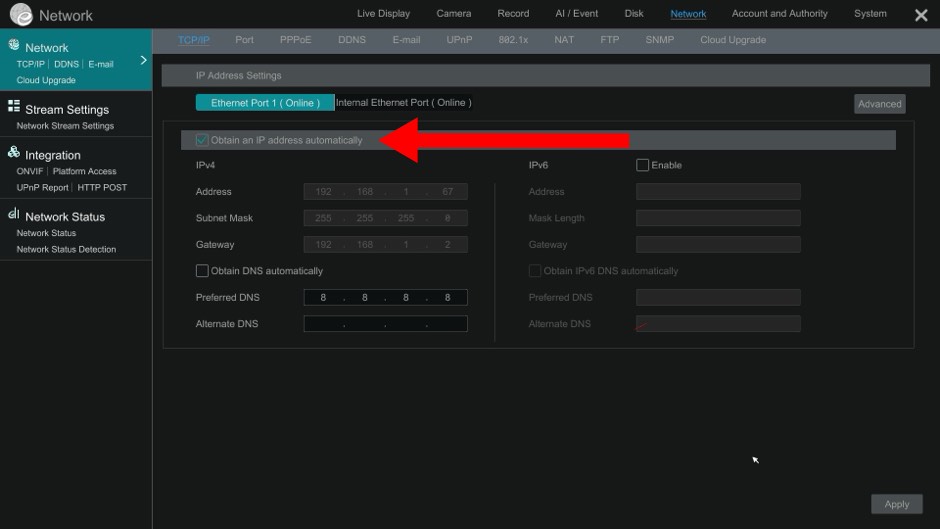
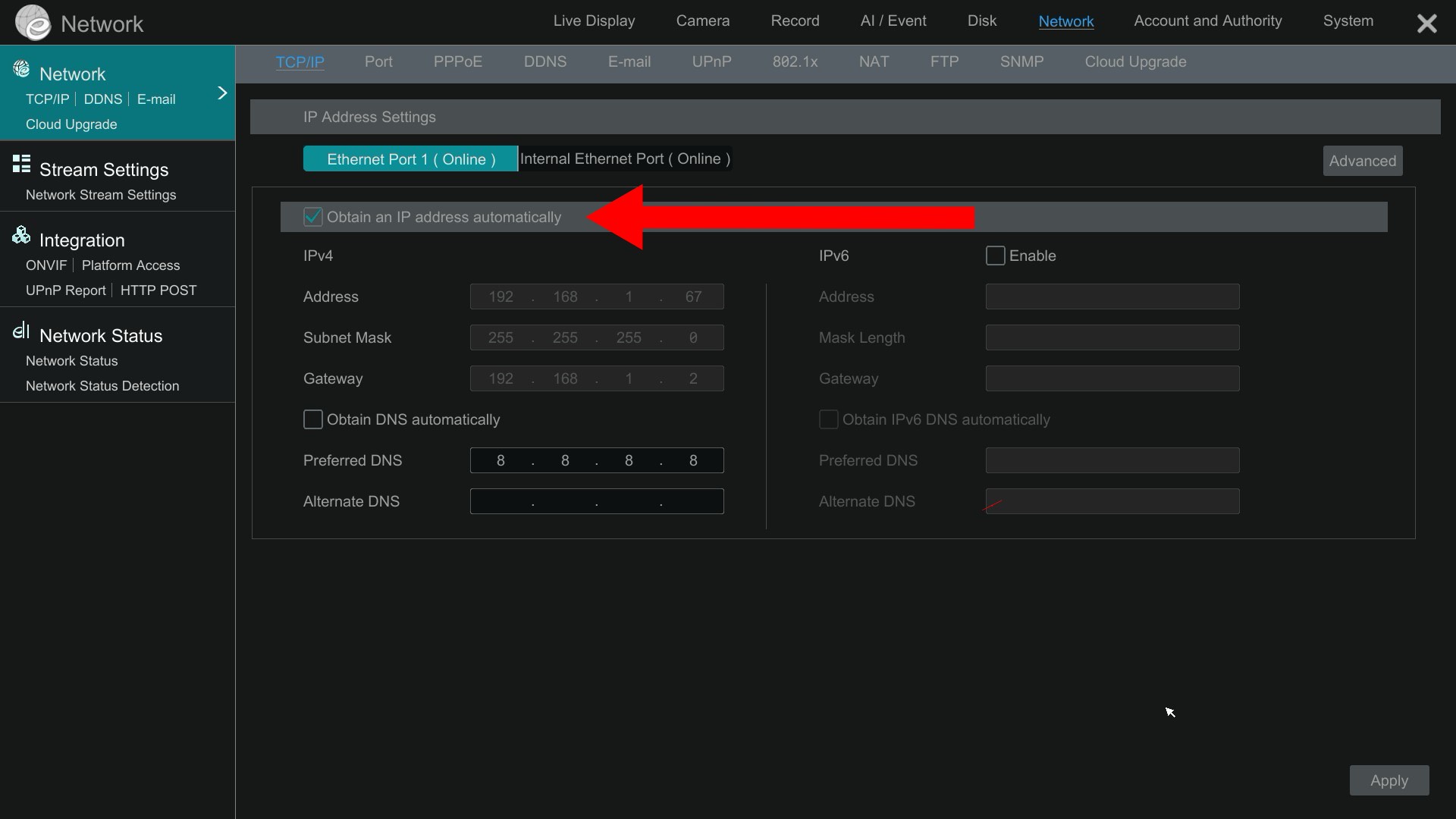
To access the IP address of the Viewtron DVR / NVR, click on the menu button in the lower left, then select Settings. From the main settings menu, click on the Network link. You can see the Network settings screen above with the IP address of your DVR displayed in the IPv4 > Address field. IN the above screen shot, the Obtain an IP address automatically is checked. This means that IP address was assigned to your DVR by your router's DHCP server. If you uncheck the Obtain an IP address automatically checkbox, you can specify a static IP address. A common way to set up a static IP address using this method is to first let your router assign an IP address, then uncheck the box and leave the IP address there that the router assigned. Click on the Apply button when done.
Now if your DVR or router reboots, your DVR will always request that IP address from the router.
Learn more about Viewtron Security Camera DVRs / NVRs
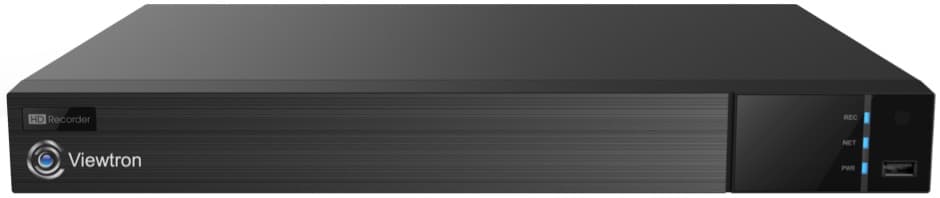
Learn more about the latest
Viewtron Hybrid Security Camera DVRs and NVRs for IP cameras with built-in PoE here.
Complete Security Camera Systems
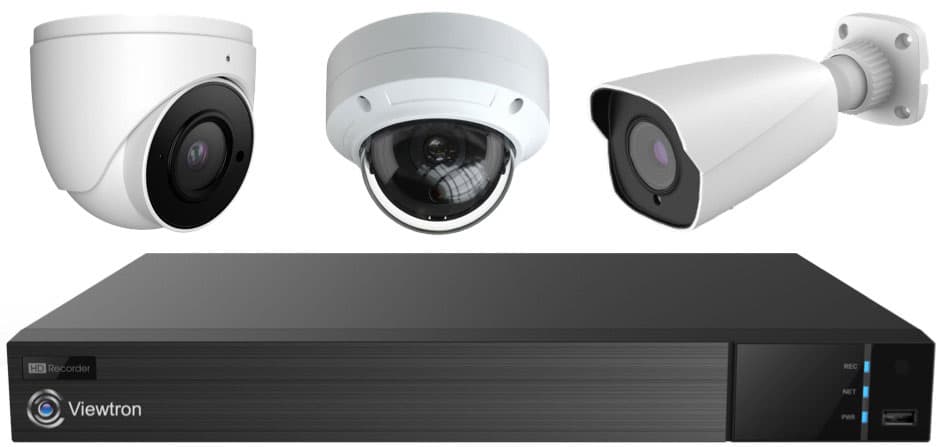
Did you know? CCTV Camera Pros can provide a complete surveillance system quote that includes any Viewtron DVR or NVR model? We can include security cameras, cables, connectors, power supplies, and monitors. We can even mix and match IP cameras and HD BNC security cameras because Viewtron DVRs are hybrid. This means that they work with just about any type of security camera. As you have probably already seen on our website, we have 2, 4, 8, and 16 camera surveillance systems in pre-made packages. However, it is not possible for us to package up every combination and quantity of all the different camera models that we carry. So, we can also provide you with a custom quote with as many cameras as you need and a mix of any combination of camera model(s) based on your project requirements. Please
request a quote when you are ready.

|