|
How-to Remotely View an IP Camera from a Windows Computer
Using Zavio IP Cameras & Zavio Network Installation Software
This article will walk you through setting up port forwarding on a single Zavio IP via Windows computer. Port forwarding will you to access the camera directly from anywhere with an Internet connection. Zavio cameras can be accessed via any web browser (IE, Mozilla, Google Chrome, Safari, etc.) as well as iOS and Android devices via the ZAVIOR app which can be downloaded in the Google Play and Apple App Store.
For this setup you will need the ZAVIO Camera Installation Tool, which can be downloaded here -- ZAVIO Installation Tool Download
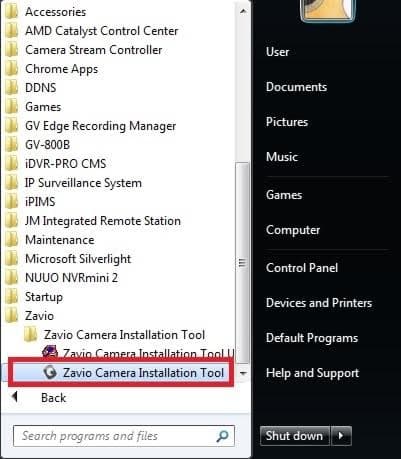
1. Run the ZAVIO Camera Installation Tool, which is located under Start > All Programs > ZAVIO Folder > Zavio Camera Installation Tool.
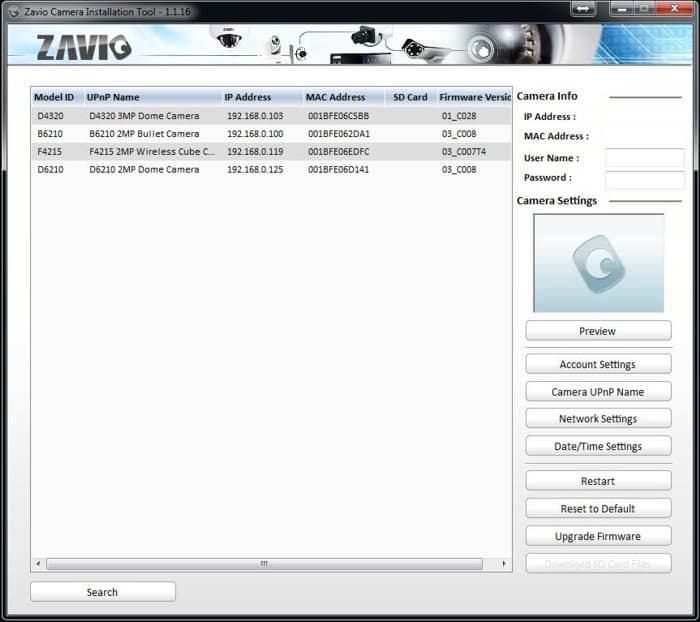
2. The ZAVIO Tool will now scan your network and pull up any ZAVIO camera connected to your router. Make note of the IP address assigned to your camera.
3. We are now going to need to login to your router. To get the gateway address for your router, go to Start > All Programs > Accessories > Command Prompt.
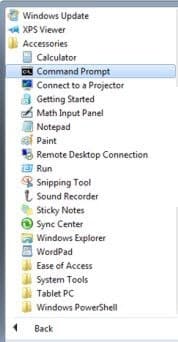
4. Once in Command Prompt, type in ipconfig and press Enter. Your IP Address will then be displayed as seen in the image below. Please write this address down as you will be using it later on.
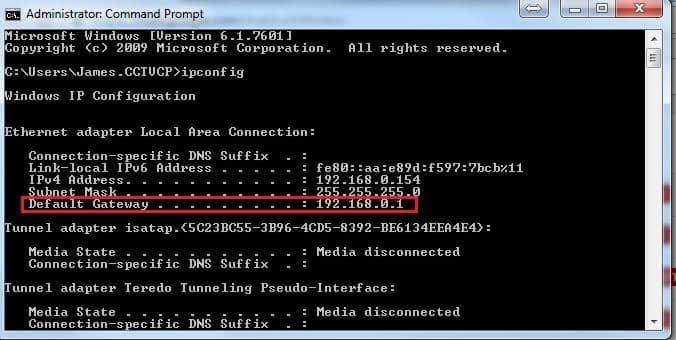
5. Type the Gateway Address into the web browser to log into your router's web admin page.
|