|
 Nuuo Main Console Remote Access iPhone / iPad Nuuo Main Console Remote Access iPhone / iPad
The instructions featured in this article explain how to access your Nuuo Main Console DVR / NVR remotely using an iPhone or iPad. The NViewer application allows users to save multiple Nuuo DVR's making access a quick and painless process. In this article, we are using the NViewer Lite (Free Version) iPhone application which is available in the App Store: NViewer Lite .
1. Start by making sure that the correct ports are forwarded in the router connected to the Nuuo Main Console PC. Then enable the correct network settings in the Main Console interface. If you have not completed this, please visit our Nuuo Main Console Network Setup article.
2. Now download the NViewer application from the App Store. Once downloaded, go ahead and launch the application.
3. Press the "+" button in the upper right corner of the application. (Shown Below) 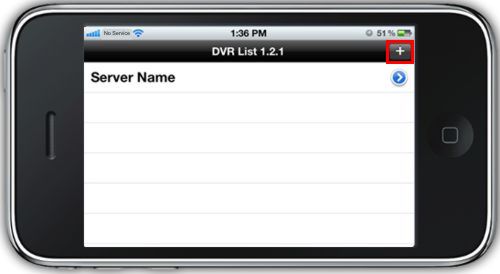
4. Then enter the name of your Nuuo Main Console DVR / NVR. The name can be anything you wish it to be. Press Save to move to the next screen. (Shown Below) 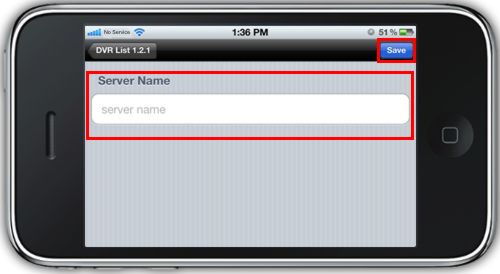
5. Now enter the Remote IP Address, HTTP Port and RTSP Port of your Nuuo DVR. Press Save to continue. (Shown Below) 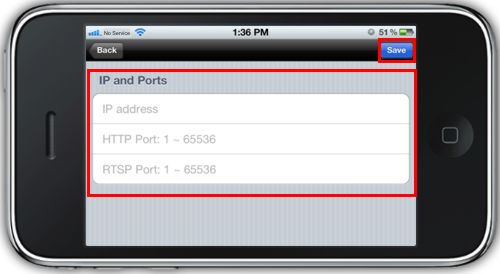
6. Enter the Username and Password of your Nuuo DVR. Click Save to complete the process. (Shown Below) 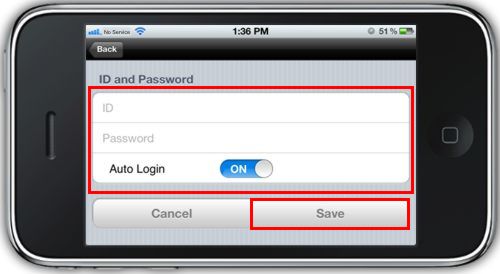
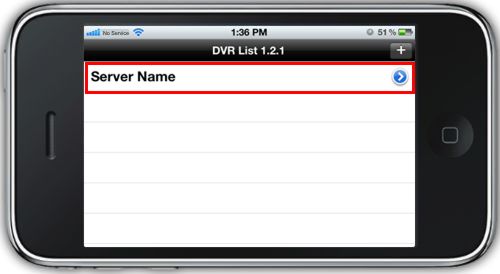
7. Now press the DVR you wish to view as shown below. You will now be able to view your Nuuo Main Console DVR on your iPhone / iPad.
|