VETERAN OWNED 561-433-8488 888-849-2288
Surveillance System Quotes Request a Surveillance DVR Viewer Demo
You are here: Home > Support & Knowledge Base > Surveillance DVR Support > JP Surveillance DVR > Motion Detection Recording

Motion Detection Camera Recording

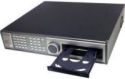
JP Surveillance System DVRMotion detection camera recording is actually a function of the surveillance DVR and not the camera.  CCTV Camera Pros JP surveillance DVRs support the ability to record video when motion is detected in any of the cameras.  Motion is detected by changes in the pixels of the images that are sent to the DVR from your security cameras.  Please follow the below instructions to setup your JP surveillance DVR to motion detection recording.

bookmark this page for future reference
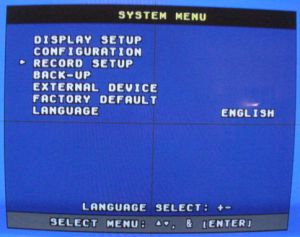
  1. From the DVRs System Menu, select Record Setup.

    Record Setup

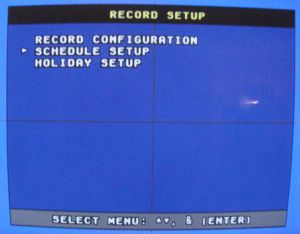
  2. On the Record Setup screen, select Schedule Setup.

    Schedule Record Setup


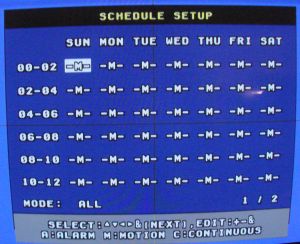
  3. On the Schedule Setup screen, use the + and - keys on the remote or DVR to set all days to "-M-", which means motions detection camera recording.

    Motion Detection Schedule


  4. Push the menu button several times until you have exited the DVR menu system. You should see your security cameras on the screen when you have exited.  DO NOT press the record button on the DVR or remote.  This is not necessary.  If you do, you will switch the DVR to panic record mode and it will record continuously.


bookmark this page for future reference

MORE RESOURCES


Team Viewer Remote Support Software
Download Support Software
TeamViewer for Windows
TeamViewer for Mac



GSA Schedule 84 Contract

US Veteran Owned Business

CCTV Camera Pros, LLC is a BBB Accredited Business. Click for the BBB Business Review.


Email Us info@cctvcamerapros.net
FREE SHIPPING ON ALL ORDERS OVER $199