Geovision Email Alert Notification Setup
 Geovision Surveillance Systems are capable of sending email alerts to notify operators that a motion detection event occurred in one or more security cameras connected to your Geovision system. These setup instructions cover how to setup Geovision to send email alerts using your own SMTP email server. In order to enable this feature, you must have an SMTP email server available to use. Geovision Surveillance Systems are capable of sending email alerts to notify operators that a motion detection event occurred in one or more security cameras connected to your Geovision system. These setup instructions cover how to setup Geovision to send email alerts using your own SMTP email server. In order to enable this feature, you must have an SMTP email server available to use.
These instructions require that you access the System menu in the Geovision interface. The System menu is accessed by clicking on button #3 pictured below.
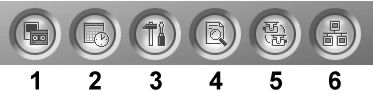
Geovision Setup- Click on the configure button (#3 above) and select General Setting, then Email Setup. If the E-Mail setup option is greyed out and not selectable, you must first stop the monitoring on your system by clicking on the Monitor button (#1) above and select stop all monitoring. The E-Mail configuration screen will open as seen below:

- On the E-Mail screen fill out the following information:
- The hostname of the SMTP server you will use to send messages.
- The email address you want the message sends from.
- The email address that you want the alert message sent to.
- The character set (leave as western European for English).
- The subject of the email message.
- The message that you want to be included in the body of the email message.
- If you want to test your SMTP gateway by sending a test email, click on the Test Email Account button.
- The image type and image size that you want to be captured and attached to the email alert.
- How much time should pass before another alert is sent. (in cases where motion is detected again).
- If you are using an SMTP server that requires authentication, check this box, and enter the Account ID and Password used to authenticate.
- The port # that your SMTP server is running on.
- If you want to provide a direct link in the email alert to open up your webcam server, check this box and enter the domain name or IP address that is used to access your Geovision system remotely.
- Click on the test mail account button to send yourself a test email message and make sure that Geovision is communicating correctly with your SMTP server.
- Press OK when done.
- Click on the Configure button again (#3 above) and select General Setting then System Configure.
- On the System Configure screen, push the Green Arrow in the Send Alerts Approach area as seen below.
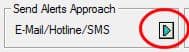
This will open the Send Alerts Approach Setup screen, as seen below.
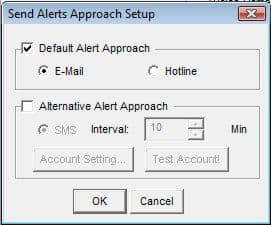
- Check the Default Alert Approach checkbox and select the E-Mail radio button.
- Press OK. You will return to the System Configure screen.
- Select the Camera record Setting Tab. The screen will look similar to the below image. Select the camera from the drop-down box that you want to set up the email alert for. Note: You can repeat this step to set up motion alerts via email for more than one camera on your system.
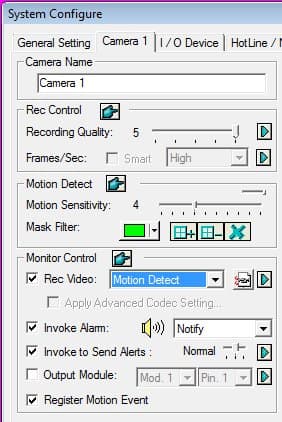
- On this screen, you can adjust the sensitivity of the camera in the Motion Detect area
- In the Monitor Control area, set Rec Video to Motion Detect if you only want to record video on motion for this camera or select Day-Night. You can only invoke email alerts when your system is recording on motion detection.
- Check the Invoke Alarm checkbox.
- Check the Invoke to Send Alerts checkbox.
- Check the Register Motion Event checkbox.
- Repeat steps 8 through 13 for each camera that you want to configure motion detection email alerts for.
- Press the OK button.
- On the main Geovision screen, click on the Monitoring button (labeled #1 below) and select Start Monitoring. Your system will only send email alerts when the system monitoring is running.
You can test your system by creating motion in one of the cameras that you configured. Wait a few minutes to receive the email alert. Your Geovision system is now configured to send email alerts upon detected motion.
|
|
|